
Creating Accessible Microsoft Word Documents
Make your Microsoft Word documents accessible to people with disabilities. Well structured, accessible documents are easy for everyone to read and use.
Microsoft Word Accessibility Checklist
Document Setup
- Set the document title. File → Info → Properties → Title
- Set the document language. Review → Language
Headings
Heading structure is critical for accessibility.
- Instead of manually formatting text (bolding or increasing font size), use "Styles" and select a heading level (Heading 1, Heading 2, Heading 3).
- For the document title, use Heading 1, not the Title style.
- Don't skip heading levels. (e.g., Heading 1 → Heading 3)
- Use Normal style for body text.
Images & Alt Text
All meaningful images must include descriptive alternative text (alt text) so that a person who uses a screen reader can understand the meaning.
- Right-click (Shift + F10) the image → Edit Alt Text
- Good alt text example: "Bar chart showing a 20% increase in website traffic from January to March"
- Describe the purpose of the image, not just what it looks like. Keep descriptions concise. Don't start with "image of" or "photo of".
- If the image doesn't add meaning, mark it decorative.
Links
- Link text should clearly describe the destination (e.g., Visit the NCDIT Digital Accessibility website.)
- Avoid vague and ambiguous phrases like "click here" or "read more"
- Avoid long, raw URLs
Lists
- Create bulleted or numbered lists using the "paragraph" formatting from the toolbar.
Tables
Keep tables simple and clearly structured.
- Use tables to show data, not for layout.
- Add a header row (Table Design → Header Row)
- Include a brief description above the table if needed. Consider a heading.
- Avoid merged or split cells.
- Consider breaking up complex tables into multiple tables.
Color & Contrast
- Text must have sufficient contrast against the background color. Aim for a text contrast ratio of at least 4.5:1.
- Parts of graphics required to understand content must have a contrast of at least 3:1 with adjacent colors.
- Don't use color alone to convey meaning since not everyone can distinguish all colors. (e.g., “items in red are overdue”)
- Pair color with text or symbols (e.g., “overdue items are marked in red with an asterisk”)
Reading Order
Content should flow logically from top to bottom.
- Avoid using text boxes or floating objects since they may break the logical reading order.
- We recommend keeping content in a single column when possible.
- Don't use tables to control page layout.
Embedded Media
- If the slides have embedded videos, the videos must have closed captions.
- If the slides have audio content, provide transcripts.
Accessibility Checker
Microsoft Word has a built-in tool to help find accessibility issues.
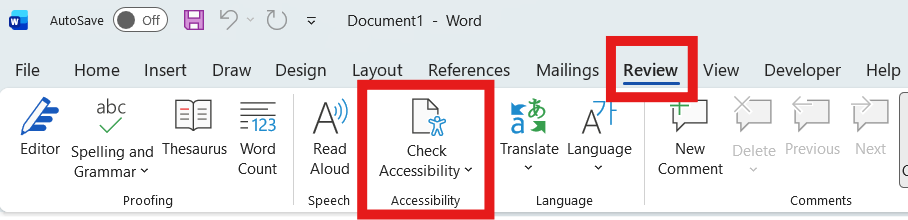
- Go to Review → Check Accessibility
- Review and fix errors, warnings, and tips
Note: The Accessibility Checker can catch many issues, but a final manual review is essential.
Export Word to PDF (optional)
To convert a Word document to PDF:
- Use File → Save As → PDF
- Ensure "Document structure tags for accessibility" is checked
Thank you for making your Word documents accessible to people with disabilities.
For additional guidance, visit Microsoft's official Word accessibility support page.